

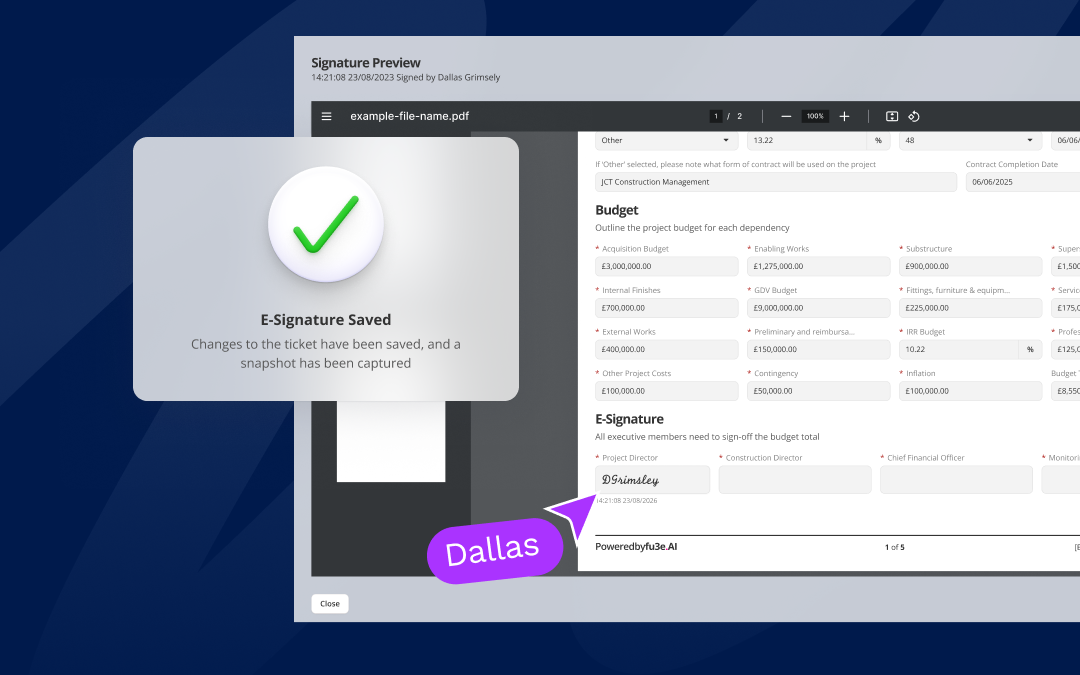
fu3e now includes a signature field - embedded directly into your forms and submissions. Approvals happen exactly where the work already lives. No third-party tools. No printing. No email chains.
How to sign
Three ways to capture a signature
- Draw - Sign naturally using a mouse, trackpad, or touch screen - just as you would with pen on paper. Simple, quick and captured against the record.
- Type - Enter your name and select a signature style. Ideal when you need to move quickly and don't have a pointer device to hand.
- Upload an image - Upload an existing signature image file. Perfect for teams with approved signature assets they need to apply consistently across formal documents.
Simple to sign, secure by design
To sign a field, simply click anywhere on the signature area within a ticket - whether that's the icon or the field itself. You'll be presented with the three signing options. Once you've signed, the ticket needs to be saved before the signature is recorded. After saving, you'll see the signed field display the signer's name and the date, with a tooltip on hover showing the exact time it was signed.
Signatures are intentional by design. They can only be applied individually, per ticket - inline editing, CSV importing, and automations cannot interact with the signature field. This ensures there is always a deliberate, human decision behind every sign-off.
If a signature needs to be updated, you'll be prompted to either replace it or remove it before re-signing. fu3e won't silently overwrite a signature - every change is tracked.
A complete audit trail on every signature
- Time and date stamp - The signed date is displayed on the ticket by default, formatted to your environment settings. Hovering over the field shows the full timestamp including the exact time it was signed.
- Document snapshot - At the point of signing, a snapshot is created that captures the ticket exactly as it looked when signed. If the ticket is updated later without re-signing, the snapshot stays unchanged - it always reflects what the approver actually signed off on.
- Snapshot attached to the ticket - The snapshot can be attached directly to the ticket - just like a report. Once attached, it cannot be duplicated, and it persists across sessions so you always know it's there. The snapshot is only replaced if the signature itself is replaced.
- Audit log entries - Every signing action is recorded in the audit log - including who signed and who changed a signature. If two different users have signed and updated the field, both are recorded, giving full visibility over the approval chain.
Sign-off where the work already lives.
E-signatures are available in your fu3e account today. No setup required. Get in touch to see it in action or to add it to your platform.
It's live now contact us if you would like to schedule a demo.
.webp)






%202.avif)
.webp)



%20copy%202.webp)